Papercraft Manual
User-facing documentation for Papercraft XML templates and the X39.Solutions.PdfTemplate compatibility bridge.
Introduction
| Manual home | Next: First document |
What Is This?
Papercraft is a template system for generating PDF documents from XML. As a template author, you describe the visible document with XML elements and attributes.
You usually work with three kinds of information:
- XML sections and controls that describe the document layout.
- Template data supplied by the application, such as customer names, dates or invoice totals.
- Template-language blocks that include, choose or repeat XML before the PDF is rendered.
When Should I Use This?
Use this chapter when you are new to the template language and need the vocabulary before editing a real document. It is also useful when a document has been handed to you and you need to identify which parts are normal XML controls, which parts read data, and which parts are template-language logic.
If the change requires new data, a new function, a new control or a new way to load images, you will probably need help from the application developer. The template can use those features after the application exposes them.
How Do I Start?
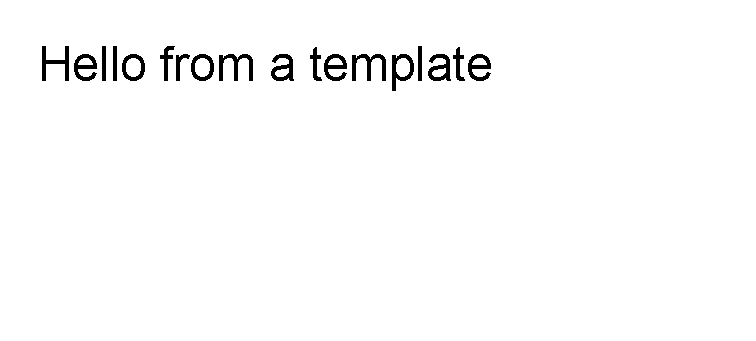
Start with one body section and one visible control.
<?xml version="1.0" encoding="utf-8"?>
<template>
    <body>
        <text fontsize="18">Hello from a template</text>
    </body>
</template>
After that, move to First document to learn where repeated headers, footers, repeated background content and fixed areas fit into a full template.
Templates, PDFs And Pages
The XML template is the design file. It says which sections and controls should exist, which data values to print and which XML blocks should be repeated or included before rendering.
The generated PDF is the output file created from that template and the application data. It can contain one page or many pages. Template authors do not write a separate XML element for each PDF page.
A PDF page is one sheet inside the output.
The body section flows through the available page space.
When body content is taller than the space available on one page, the generated PDF continues that body content on
later pages.
Headers, footers, background and foreground are page sections or layers that repeat as the generator creates the
output pages.
Fixed areas render once at absolute document coordinates and do not join the body flow.
The page count can change when template data changes, when rows repeat or when text becomes longer. Use Page number control instead of typing page numbers by hand.
Document Design Workflow
Work in small steps:
- Start from the smallest template that renders.
- Put normal document content in
body. - Add optional sections only when needed:
header,footer,background,foregroundorareas. - Add one control at a time, such as
text,border,line,image,tableorpageNumber. - Replace changing text with template data expressions such as
@CustomerName. - Use template-language blocks only when XML needs to be conditional or repeated.
- Generate a preview, check the output, then make the next small change.
This keeps layout problems easier to find. If a change breaks rendering, the most recent control, attribute or template-language block is the first place to look.
Basic Vocabulary
| Term | Meaning | Read next |
|---|---|---|
| Template | The XML document that describes the generated output. | First document |
| Section | A top-level template part such as body, header or footer. |
First document |
| Area | A fixed-position rectangle rendered once at an absolute document position. | Areas |
| Control | An XML element that renders something, such as text, border, table or image. |
Controls |
| Attribute | A setting on a control, such as fontsize, margin, padding or color. |
Layout fundamentals |
| Template data | Values supplied by the application and read by the template. | Template data |
| Variable | A named value used with expressions such as @CustomerName. |
Template data |
| Function | A reusable value or calculation exposed to the template, such as @total() when the application provides it. |
Template data |
| Transformer | A template-language block such as @if, @foreach or @var that rewrites XML before rendering. |
Transformers |
| Resource | External content used by a control, most commonly an image source. | Controls |
| Page setup | Document-level options such as page size and page margin. | Developer integration appendix |
When To Ask For Application Help
Template authors can change XML structure, control attributes, text, simple expressions and template-language blocks. Ask for application help when the template needs something that is not already available:
- a new data value,
- a new function,
- a custom control,
- a custom transformer,
- a different image-loading source,
- a page setup option that your application does not expose.
Keep those integration details out of user-facing templates. Use the developer integration appendix as the place to collect them.
| Manual home | Next: First document |