Papercraft Manual
User-facing documentation for Papercraft XML templates and the X39.Solutions.PdfTemplate compatibility bridge.
Template Language
| Previous: Transformers | Manual home | Next: Complete examples |
What Is This?
The template language changes XML before controls are created. Its transformer blocks can include content conditionally, choose between alternatives, repeat content for a range or list, alternate values, and define temporary variables.
Built-in transformer names are alternate, var, if, switch, for and foreach.
When Should I Use This?
Use this chapter when the document needs different content for different data, or when the same XML pattern should be repeated. Typical examples include optional sections, status-specific labels, invoice rows and alternating table row colors.
How Do I Start?
Start with the simplest transformer that matches the task:
- Use
@iffor optional content. - Use
@switchfor several alternatives. - Use
@foreachfor a list supplied by template data. - Use
@forfor a numeric range. - Use
@varto give a short temporary name to a value. - Use
@alternateto rotate between values, such as repeated row colors.
In transformer lines, write expression variable names without @.
Inside rendered text or attributes, keep using @VariableName to insert the value.
For example, this @if line reads the ShowDiscount value, while the text control prints normal text:
<template>
    <body>
        @if ShowDiscount {
            <text>Discount included</text>
        }
    </body>
</template>
The application must supply ShowDiscount as a Boolean value.
Conditions With @if
Use @if when a section should appear only when a condition is true.
Use @else if and @else when the template needs a fallback.
Use this pattern for optional notices, paid/unpaid messages, approval labels or other content that should depend on one value supplied by the application.
<template>
<body>
@if BalanceDue > 0 {
<text>Payment required</text>
}
@else if BalanceDue == 0 {
<text>Paid in full</text>
}
@else {
<text>Credit balance</text>
}
</body>
</template>
Because templates are XML, write < as < and > as > inside XML text.
Supported comparison operators are >, <, >=, <=, ==, !=, ===, !== and in.
String equality with == and != is case-insensitive; use === or !== when exact casing matters.
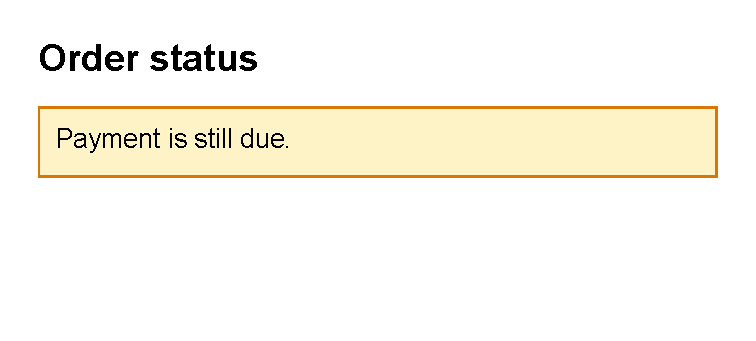
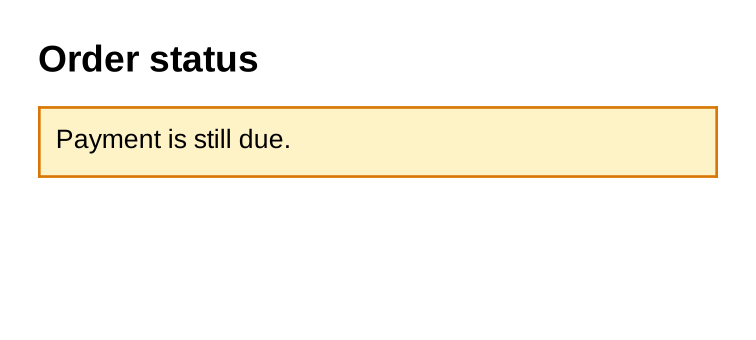
This complete sample chooses one visible message from a Boolean value named HasBalanceDue:
<?xml version="1.0" encoding="utf-8"?>
<template>
    <body>
        <text fontsize="14" weight="bold">Order status</text>
        @if HasBalanceDue {
        <border
            background="#fef3c7"
            color="#d97706"
            thickness="1pt"
            padding="2mm"
            margin="0 2mm 0 0"
            verticalAlignment="top">
            <text fontsize="10">Payment is still due.</text>
        </border>
        }
        @else {
        <border
            background="#dcfce7"
            color="#16a34a"
            thickness="1pt"
            padding="2mm"
            margin="0 0 0 2mm"
            verticalAlignment="top">
            <text fontsize="10">Paid in full.</text>
        </border>
        }
    </body>
</template>
The application supplies HasBalanceDue as a Boolean.
When it is true, the first border is included; otherwise, the @else border is included.
Leave out the @else block when the section should simply disappear.
Show Optional Values With @if
Use an application-supplied Boolean when a section should appear only if an optional value exists. Do not use the text value itself as a truthy check. For the underlying missing-data behavior in text and attributes, see When data is missing.
<template>
    <body>
        @if HasPurchaseOrder {
            <text>Purchase order: @PurchaseOrder</text>
        }
    </body>
</template>
The application supplies both values:
HasPurchaseOrder:truewhen the value should be shown.PurchaseOrder: the text to print.
When an @if expression has no comparison operator, it must evaluate to true or false.
PurchaseOrder is not accepted as an existence check.
If the application exposes a helper function, the same idea can be written with a function that returns a Boolean:
<template>
    <body>
        @if hasPurchaseOrder() {
            <text>Purchase order: @PurchaseOrder</text>
        }
    </body>
</template>
Ask the application team which optional-value flags or helper functions are available.
Choices With @switch
Use @switch when one value chooses between several branches.
The first matching @case is used.
If no case matches, the optional @default branch is used.
<template>
    <body>
        @switch Status {
            @case "paid" {
                <text>Paid</text>
            }
            @case "pending" {
                <text>Pending</text>
            }
            @default {
                <text>Status needs review</text>
            }
        }
    </body>
</template>
@case and @default belong inside @switch; they are not standalone transformers.
Put @default last, and use it only once.
Cases without an explicit operator use ==.
Cases can also use operators such as @case > 3 or @case in AllowedStatuses.
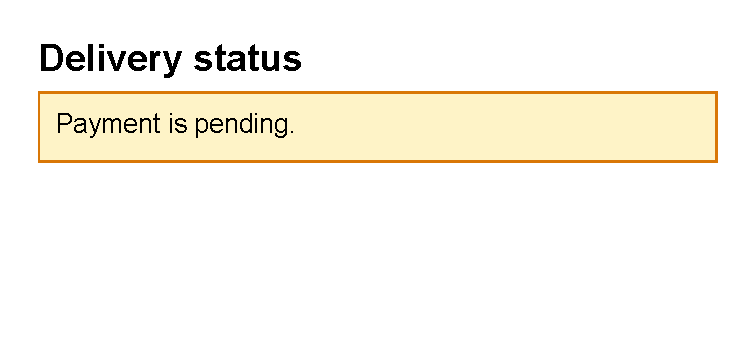
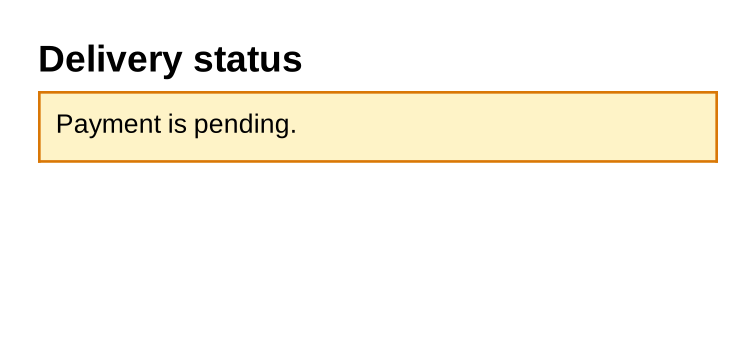
This complete sample chooses one status box from a value named Status.
<?xml version="1.0" encoding="utf-8"?>
<template>
    <body>
        <text fontsize="14" weight="bold">Delivery status</text>
        @switch Status {
        @case "paid" {
        <border background="#dcfce7" color="#16a34a" thickness="1pt" padding="2mm" verticalAlignment="top">
            <text fontsize="10">Paid and ready to ship.</text>
        </border>
        }
        @case "pending" {
        <border background="#fef3c7" color="#d97706" thickness="1pt" padding="2mm" verticalAlignment="top">
            <text fontsize="10">Payment is pending.</text>
        </border>
        }
        @default {
        <border background="#f1f5f9" color="#64748b" thickness="1pt" padding="2mm" verticalAlignment="top">
            <text fontsize="10">Status needs review.</text>
        </border>
        }
        }
    </body>
</template>
Lists With @foreach
Use @foreach when the application supplies a list and the template should render one block per item.
<template>
    <body>
        @foreach Line in Lines {
            <text>@Line</text>
        }
    </body>
</template>
The application must supply Lines as a collection.
The transformer creates a temporary variable named Line for each item.
If each list item has several fields, do not assume @Line.Description reads a property.
Dots are treated as punctuation in text, not as property access.
Ask the application team to supply simple display values, or a function that returns the exact value the template
should print.
See Nested data.
Add with Index when the template also needs a zero-based counter:
<template>
    <body>
        @foreach Line in Lines with Index {
            <text>@Index: @Line</text>
        }
    </body>
</template>
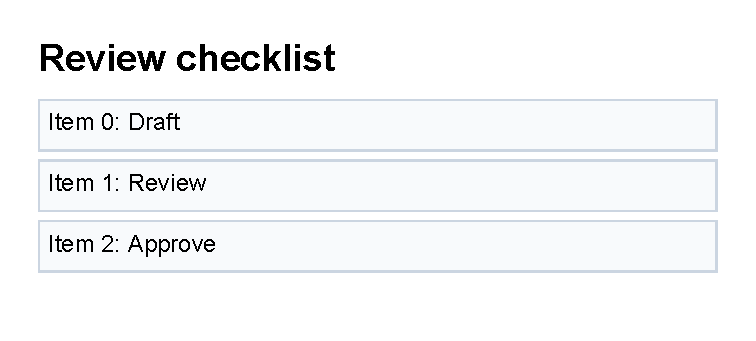
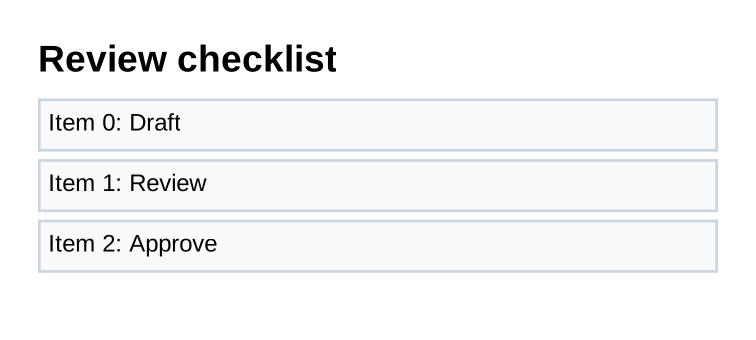
This complete sample repeats one small block for each task name and prints the zero-based index.
<?xml version="1.0" encoding="utf-8"?>
<template>
    <body>
        <text fontsize="14" weight="bold">Review checklist</text>
        @foreach TaskName in Tasks with Index {
        <border
            background="#f8fafc"
            color="#cbd5e1"
            thickness="1pt"
            padding="1mm"
            margin="0 1mm 0 0"
            verticalAlignment="top">
            <text fontsize="9">Item @Index: @TaskName</text>
        </border>
        }
    </body>
</template>
Numeric Ranges With @for
Use @for for a simple numeric range that is part of the template design.
Use @foreach for real data lists such as invoice rows.
<template>
    <body>
        @for Step from 1 to 4 {
            <text>Step @Step</text>
        }
    </body>
</template>
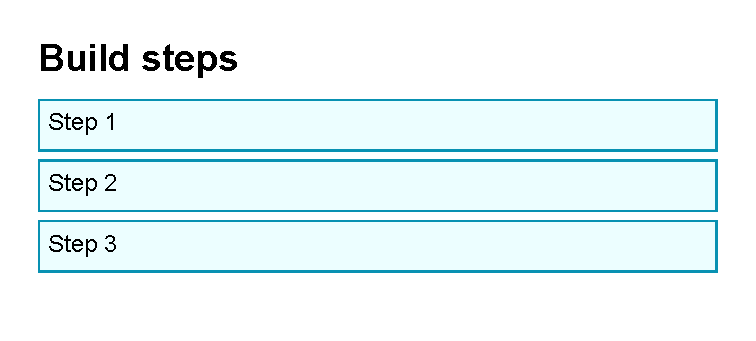
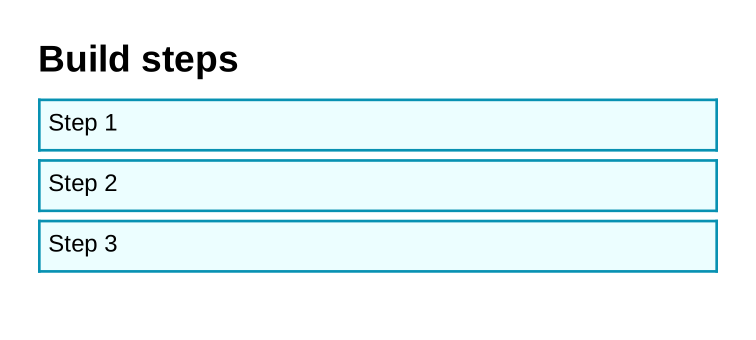
The end value is not included, so this example emits steps 1, 2 and 3.
Use step to skip values:
<template>
    <body>
        @for Step from 0 to 10 step 2 {
            <text>Step @Step</text>
        }
    </body>
</template>
When counting down, use a negative step:
<template>
    <body>
        @for Step from 3 to 0 step -1 {
            <text>Step @Step</text>
        }
    </body>
</template>
This complete sample emits three fixed design steps.
<?xml version="1.0" encoding="utf-8"?>
<template>
    <body>
        <text fontsize="14" weight="bold">Build steps</text>
        @for Step from 1 to 4 {
        <border
            background="#ecfeff"
            color="#0891b2"
            thickness="1pt"
            padding="1mm"
            margin="0 1mm 0 0"
            verticalAlignment="top">
            <text fontsize="9">Step @Step</text>
        </border>
        }
    </body>
</template>
Temporary Values With @var
Use @var to give a short temporary name to an expression inside one block.
This can make repeated text easier to read.
<template>
    <body>
        @var Label = "Invoice total" {
            <text>@Label</text>
        }
    </body>
</template>
You can define more than one temporary value in the same block:
<template>
    <body>
        @var Label = "Customer", Value = CustomerName {
            <text>@Label: @Value</text>
        }
    </body>
</template>
CustomerName must be supplied by the application.
This complete sample uses a fixed label and a value supplied by the application.
<?xml version="1.0" encoding="utf-8"?>
<template>
    <body>
        <text fontsize="14" weight="bold">Customer summary</text>
        @var Label = "Bill to", Name = CustomerName {
        <border
            background="#f8fafc"
            color="#94a3b8"
            thickness="1pt"
            padding="2mm"
            margin="0 0 0 2mm"
            verticalAlignment="top">
            <text fontsize="9" weight="bold">@Label</text>
            <text fontsize="10">@Name</text>
        </border>
        }
    </body>
</template>
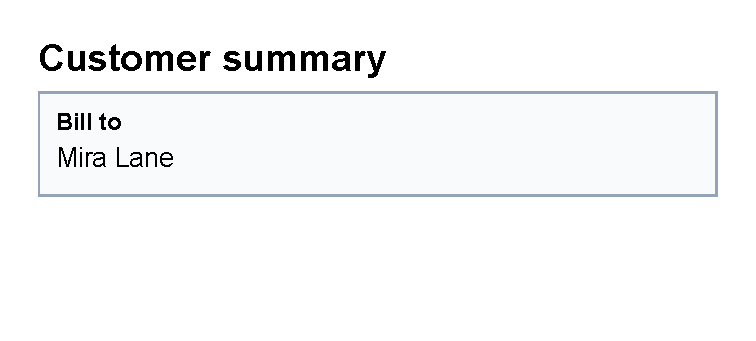
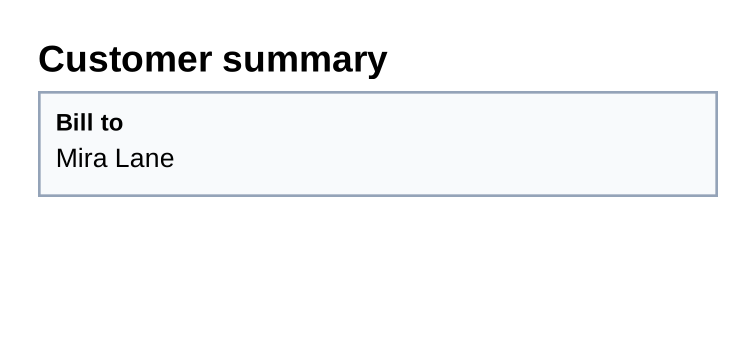
The application supplies CustomerName.
Label and Name are only available inside the @var block.
Alternating Values With @alternate
Use @alternate when repeated XML should rotate through a small set of values.
The common document use is alternating table row colors.
<template>
    <body>
        @alternate on RowLabel with ["Odd", "Even"] {
            <text>@RowLabel row</text>
        }
        @alternate on RowLabel {
            <text>@RowLabel row</text>
        }
        @alternate on RowLabel {
            <text>@RowLabel row</text>
        }
    </body>
</template>
The first block supplies the value list.
Later @alternate on RowLabel blocks advance to the next value.
The list starts over when it reaches the end.
Use repeat when a second block should reuse the current value instead of advancing:
<template>
    <body>
        @alternate on RowLabel with ["Odd", "Even"] {
            <text>@RowLabel title</text>
        }
        @alternate repeat on RowLabel {
            <text>@RowLabel detail</text>
        }
    </body>
</template>
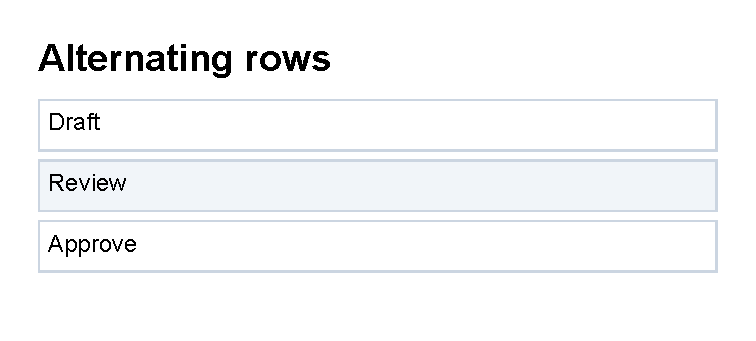
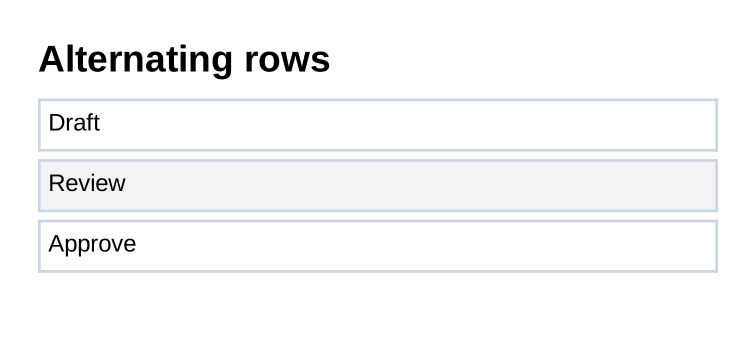
This complete sample alternates a background color across three rows.
<?xml version="1.0" encoding="utf-8"?>
<template>
    <body>
        <text fontsize="14" weight="bold">Alternating rows</text>
        @alternate on RowBackground with ["#ffffff", "#f1f5f9"] {
        <border
            background="@RowBackground"
            color="#cbd5e1"
            thickness="1pt"
            padding="1mm"
            margin="0 1mm 0 0"
            verticalAlignment="top">
            <text fontsize="9">Draft</text>
        </border>
        }
        @alternate on RowBackground {
        <border
            background="@RowBackground"
            color="#cbd5e1"
            thickness="1pt"
            padding="1mm"
            margin="0 1mm 0 0"
            verticalAlignment="top">
            <text fontsize="9">Review</text>
        </border>
        }
        @alternate on RowBackground {
        <border
            background="@RowBackground"
            color="#cbd5e1"
            thickness="1pt"
            padding="1mm"
            margin="0 1mm 0 0"
            verticalAlignment="top">
            <text fontsize="9">Approve</text>
        </border>
        }
    </body>
</template>
Common Mistakes
- Do not write
@before variable names in transformer expressions. Use@if ShowDiscount, not@if @ShowDiscount. - Use
@else if, not bareelse if. - Put
@defaultlast inside@switch. - Use
@foreachonly with a value that is a collection. - In XML text, write
<as<and>as>.
| Previous: Transformers | Manual home | Next: Complete examples |